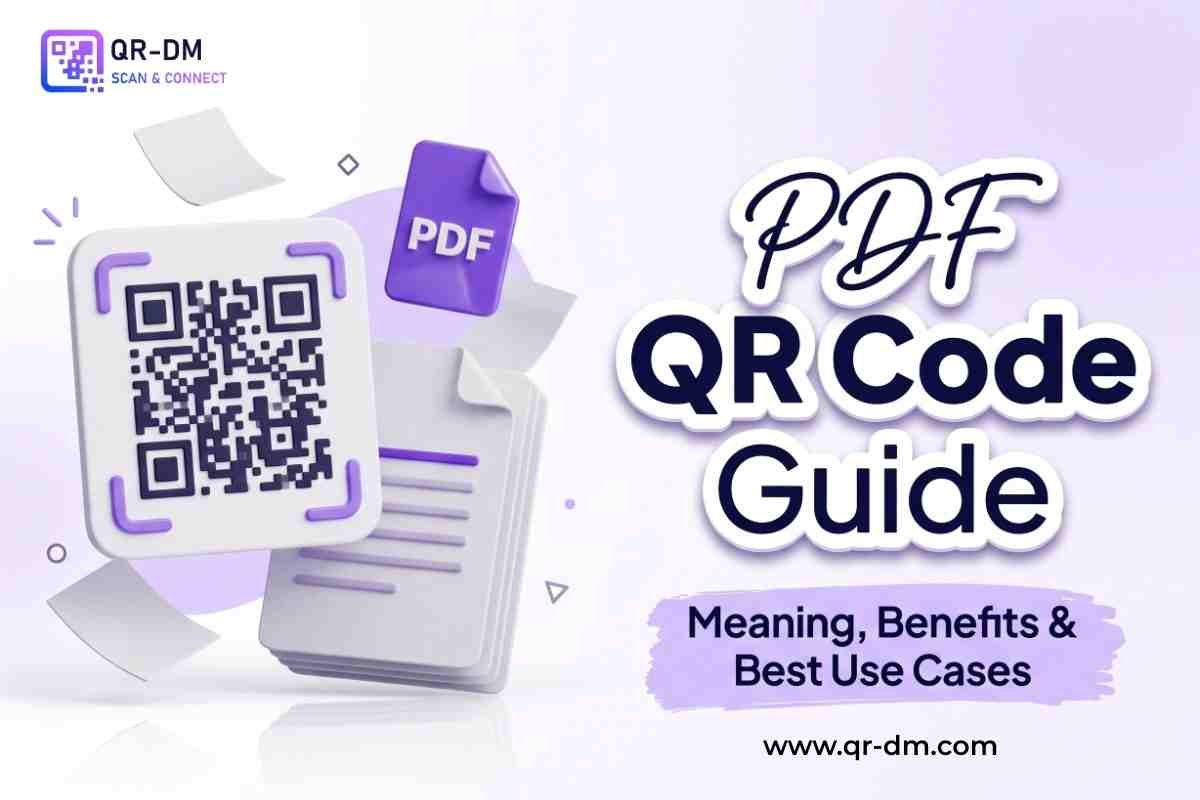
A PDF QR Code Generator allows businesses and individuals to share PDF files instantly through a QR code. Users simply scan the QR code using their smartphone and immediately access the PDF document without typing URLs or searching for files.
PDF QR Codes are widely used for digital brochures, restaurant menus, product catalogs, user manuals, event guides, reports, presentations, educational materials, and marketing documents.
By converting PDF files into QR Codes, businesses can reduce printing costs, simplify information sharing, and ensure users always have access to the latest version of important documents.
Dynamic QR Code functionality can also be available for PDF QR Codes. Dynamic QR Codes are a common feature across QR types including URL, WiFi, Phone, SMS, Email, Business Card, Location, Text, WhatsApp, Document, Event QR, Payment, and Multi-Link QR Codes.
What is a PDF QR Code?
A PDF QR Code is a QR code that links directly to a PDF file. When scanned, users can instantly view, download, or save the PDF on their device.
Common PDF content includes:
- Restaurant menus
- Product catalogs
- Business brochures
- User manuals
- Technical documentation
- Reports and presentations
- Educational materials
- Event guides
- Price lists
- Warranty documents
How Does a PDF QR Code Work?
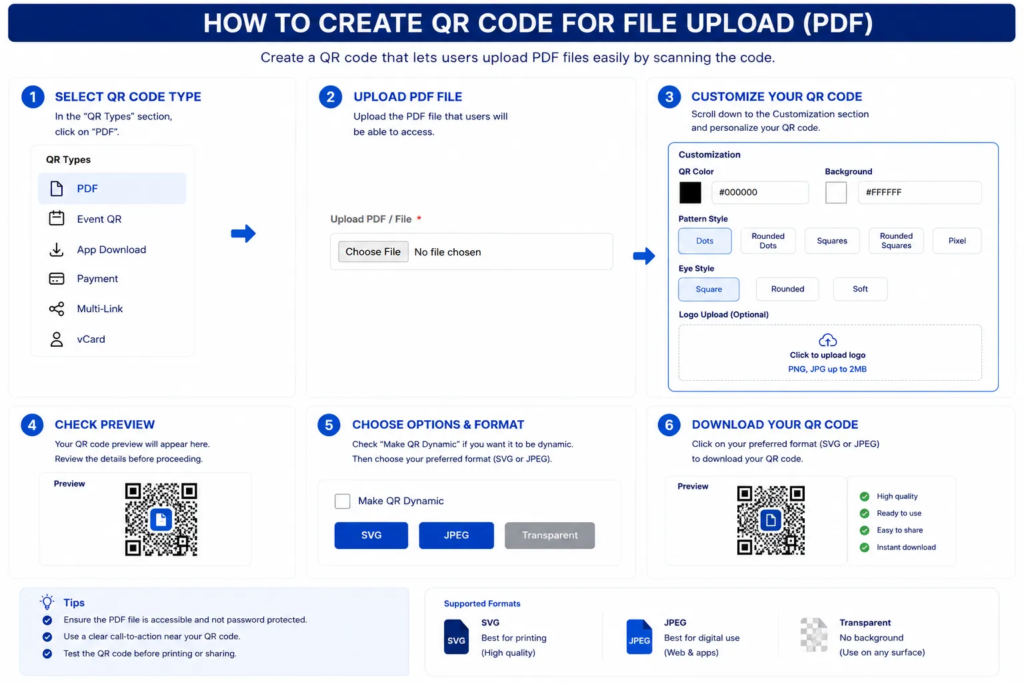
Step 1: Select the QR Code Type
- Open the QR code generator.
- In the QR Types section, select PDF.
Step 2: Upload the PDF File
- Click Choose File.
- Select the PDF file you want users to access after scanning the QR code.
- Ensure the file uploads successfully before proceeding.
Step 3: Customize Your QR Code
- Scroll to the Customization section.
- Choose the QR code color.
- Select the background color.
- Pick a pattern style (Dots, Rounded Dots, Squares, Rounded Squares, or Pixel).
- Choose an eye style (Square, Rounded, or Soft).
- (Optional) Upload a logo (PNG or JPG, up to 2 MB) to display in the center of the QR code.
Step 4: Check the Preview
- Review the QR code preview.
- Verify that the uploaded PDF and design settings are correct.
Step 5: Choose Output Options
- (Optional) Enable Make QR Dynamic if you want a dynamic QR code.
- Select your preferred download format:
- SVG – Best for high-quality printing.
- JPEG – Best for websites, social media, and digital use.
- Transparent – Best for placing the QR code on different backgrounds.
Step 6: Download the QR Code
- Click your preferred format (SVG, JPEG, or Transparent) to download the QR code.
- Save the file and test it by scanning it with a smartphone to confirm the PDF opens correctly.
Why PDF QR Codes Are Useful
PDF QR Codes make document distribution easier and more accessible. Instead of printing large quantities of documents or emailing files individually, businesses can share information through a single QR code.
This creates a better user experience while reducing operational costs and environmental impact.
Key Benefits of Using a PDF QR Code Generator
1. Instant Access to Documents
Users can open PDF files immediately after scanning. There is no need to type URLs, search for files, or request documents via email.
2. Reduces Printing Costs
Businesses can distribute digital documents instead of printing hundreds of copies. This saves money on paper, ink, and distribution.
3. Easy Information Sharing
PDF QR Codes are perfect for brochures, menus, manuals, reports, and any document that needs to be shared widely.
4. Mobile-Friendly Experience
Users can access information from smartphones, tablets, and computers. PDFs are viewable on almost every device.
5. Supports Detailed Content
PDF files can contain images, charts, tables, forms, and extensive information that may not fit in other QR code formats.
6. Environmentally Friendly
Digital document sharing reduces paper waste and supports sustainable business practices.
7. Better Customer Experience
Users get quick access to the information they need without unnecessary steps or delays.
Dynamic QR Code Feature for PDF QR Codes
What is a Dynamic QR Code?
A dynamic QR code can be managed, updated, and tracked after creation depending on the QR platform’s capabilities.
Dynamic QR Code features may include:
- Scan analytics
- Location insights
- Device analytics
- Campaign tracking
- Editable PDF destinations
- Centralized QR management
Why Dynamic QR Codes Are Useful
PDF files often require updates. Businesses may need to replace menus, catalogs, brochures, manuals, or reports without reprinting QR codes.
Dynamic QR functionality allows businesses to manage document updates more efficiently. Instead of printing new QR codes every time a document changes, businesses can simply update the PDF link in the QR platform.
Dynamic QR Codes for All QR Types
Dynamic QR functionality can be available across all QR categories including URL, WiFi, Phone, SMS, Email, WhatsApp, Business Card, Location, Text, PDF, Document, Event, App Link, App Download, Payment, Multi-Link, and vCard QR Codes.
PDF QR Code Use Cases
1. Restaurant Menus
Provide digital menus without printing new copies for every update. Restaurants can change prices, add dishes, and remove items instantly.
2. Product Catalogs
Allow customers to browse products instantly. Retailers can showcase their entire product range through a single QR code.
3. User Manuals
Share setup guides, instructions, and technical documentation. Customers can access manuals anytime, reducing support calls.
4. Real Estate Brochures
Provide property details, floor plans, and project information. Prospective buyers can view comprehensive property information instantly.
5. Educational Materials
Share notes, assignments, course materials, and study guides. Students can access learning resources from anywhere.
6. Event Guides
Distribute schedules, venue maps, and attendee information. Event organizers can update information without reprinting materials.
7. Healthcare Information
Provide patient instructions, reports, and medical resources. Patients can access health information conveniently.
8. Marketing Campaigns
Share brochures, presentations, and promotional materials. Marketing teams can distribute collateral digitally.
9. Product Packaging
Link customers to warranty documents and manuals. This reduces packaging clutter and provides complete information.
10. Corporate Documents
Share reports, presentations, policies, and internal resources. Businesses can distribute documents efficiently across teams.
PDF QR Code vs Other QR Code Types
PDF QR Code vs Document QR Code
A Document QR Code may support multiple file formats, while a PDF QR Code focuses specifically on PDF files.
Use PDF QR Code for PDF documents. Use Document QR Code for other file types.
PDF QR Code vs URL QR Code
A URL QR Code opens a webpage, while a PDF QR Code opens a PDF document.
Use URL QR Code for websites and landing pages. Use PDF QR Code for document sharing.
PDF QR Code vs Text QR Code
A Text QR Code displays short text directly, while a PDF QR Code supports larger and richer content.
Use Text QR Code for brief information. Use PDF QR Code for detailed documents.
PDF QR Code vs Multi-Link QR Code
A Multi-Link QR Code shares multiple destinations, while a PDF QR Code focuses on a specific PDF document.
Use PDF QR Code for a single document. Use Multi-Link QR Code when you want to share PDF, website, phone, and social links together.
Best Practices for Creating a PDF QR Code
1. Optimize PDFs for Mobile Devices
Ensure documents are readable on smartphones and tablets. Use clear fonts, appropriate font sizes, and mobile-friendly formatting.
2. Keep File Sizes Reasonable
Large files can create slow loading experiences. Compress PDFs without compromising quality to ensure fast loading.
3. Use a Clear Call to Action
Tell users what will happen when they scan the QR code.
Good examples:
- Scan to View Menu
- Scan to Download Catalog
- Scan to Access Brochure
- Scan to View PDF
- Scan to Read User Manual
4. Test Before Publishing
Verify the PDF opens correctly on different devices and operating systems (Android, iOS, Windows, Mac).
5. Use Dynamic QR Features
Dynamic QR functionality can simplify updates and provide analytics. This is especially useful for documents that change frequently.
Where Can You Place a PDF QR Code?
PDF QR Codes can be placed on many offline and digital materials:
- Product Packaging
- Restaurant Tables
- Brochures
- Business Cards
- Posters
- Trade Show Booths
- Event Materials
- Store Displays
- Advertisements
- Email Signatures
- Invoices
- Warranty Cards
- Websites and Landing Pages
- Social Media Profiles
Industries That Can Use PDF QR Codes
Retail
Retailers can use PDF QR Codes for product catalogs, price lists, and promotional materials.
Restaurants
Restaurants can provide digital menus, specials, and catering information.
Healthcare
Healthcare providers can share patient instructions, health resources, and medical reports.
Education
Schools and institutes can distribute course materials, notes, and study guides.
Real Estate
Agents and builders can share property brochures, floor plans, and project details.
Hospitality
Hotels and resorts can provide guest guides, service menus, and activity schedules.
Manufacturing
Manufacturers can share user manuals, warranty documents, and technical specifications.
Technology
Tech companies can distribute product guides, release notes, and technical documentation.
Events
Event organizers can share schedules, venue maps, and attendee information.
Professional Services
Consultants, lawyers, and service providers can share reports, presentations, and proposals.
Related QR Code Generators You May Also Need
Depending on your use case, you may also benefit from a Document QR Code, URL QR Code, Text QR Code, Business Card QR Code, Location QR Code, Event QR Code, Payment QR Code, or a Multi-Link QR Code.
If you need to share multiple file formats, a Document QR Code may be more appropriate. For websites and landing pages, use a URL QR Code. For brief information, use a Text QR Code.
If you want to share complete contact information, use a Business Card QR Code or vCard QR Code. For event registrations, use an Event QR Code. For collecting payments, use a Payment QR Code.
If you want to share multiple options from one QR code such as PDF, website, phone, WhatsApp, and social links together, a Multi-Link QR Code is a better option.
What is a PDF QR Code?
A PDF QR Code provides instant access to a PDF document when scanned. Users can view, download, or save the file on their device.
What is a PDF QR Code Generator?
It is a tool used to create QR codes that link directly to PDF files, making document distribution simple and efficient.
Can I update the PDF after creating the QR Code?
With dynamic QR functionality, updates may be possible depending on the platform. You can replace the PDF file without changing the QR code.
Can PDF QR Codes be dynamic?
Yes. Dynamic QR functionality may provide analytics, tracking, and document management features depending on the platform.
Who should use PDF QR Codes?
Restaurants, retailers, educators, healthcare providers, real estate companies, manufacturers, event organizers, and any business that shares documents regularly.
Conclusion
A PDF QR Code Generator is one of the most effective ways to share digital documents instantly and efficiently.
Whether you need to distribute menus, catalogs, brochures, manuals, reports, or educational content, PDF QR Codes provide a seamless experience for users while reducing printing costs and improving accessibility.
They are easy to create, simple to use, and work on almost every mobile device. By eliminating the need for physical copies, businesses can save money, reduce waste, and ensure users always have access to the most current information.
Combined with Dynamic QR Code functionality, PDF QR Codes become a powerful solution for document sharing, marketing, customer support, and business communication.
Ready to create your own QR code?
Put these strategies into practice. Generate clean, high-resolution static or dynamic QR codes in seconds with full design customization, vector export, and scan analytics.
Zain
Technical Writer & QR Specialist